PDF Jumper & Document Reader
Vialle;Productivity
3.854.00 Reviews
- Version
- 1.1.3
- Installs
- 1.00M
- Age Rating
- Everyone
Screenshots
Our Review of PDF Jumper & Document Reader
 Analysis by Appyee
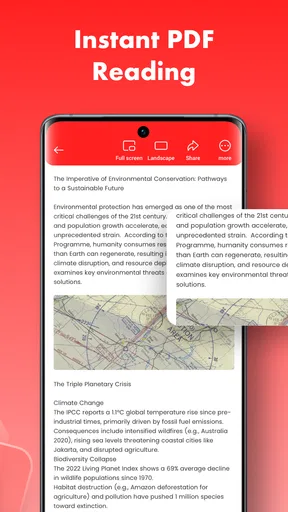
When I open a document viewer, I want it to get out of the way quickly. I am usually trying to check a PDF, glance at a spreadsheet, or read a DOCX file rather than build a document from scratch. PDF Jumper & Document Reader takes that focused approach. It is a free productivity app from Vialle for viewing PDF, Excel, and DOCX files, and its appeal is mainly its compact, uncluttered purpose.
After spending time with it, I see the app as a practical reading tool rather than a replacement for a full office suite. That distinction matters. It can make sense when I need a lightweight place to open documents on a phone, but it is less convincing if I expect advanced editing, collaboration, cloud workflows, or detailed file management. The strongest reason to try it is simplicity; the strongest reason to hesitate is that a narrow viewer has to be especially dependable in everyday file handling.
What the compact viewer is really good at
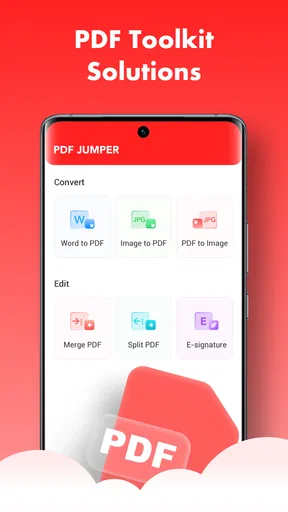
The first thing I appreciate is the straightforward idea behind the app. Instead of presenting a large collection of writing, editing, scanning, and sharing tools, it concentrates on opening common office formats. That makes it easier to understand what I am getting before installing it: a mobile reader for PDFs, Excel workbooks, and DOCX documents, not a complete work suite.
That focus is useful on a phone with limited attention and screen space. If a colleague sends a document while I am away from my computer, I can use a viewer like this to inspect the contents without committing to a much larger office application. The same applies to downloaded forms, schedules, invoices, meeting notes, and reference files. I do not always need to edit a document; sometimes I only need to confirm what it says.
The store summary describes it as clean and compact, and that is the right expectation to set. A compact interface can reduce the small frustrations that come from navigating through unrelated tools. I would rather see the file I selected than be pushed through a complicated setup process before I can read it. For occasional document checks, that difference is meaningful.
PDF Jumper & Document Reader has an average rating of 3.7 from around 1.4 thousand ratings, with more than 500 thousand installs. Those figures suggest that it has reached a useful audience, while also reminding me not to treat it as universally polished. A viewer lives or dies by how consistently it opens different files, preserves layout, and responds to ordinary gestures. A middling average is a reason to test it with my own documents instead of assuming it will handle every file equally well.
A realistic day-to-day workflow
Imagine receiving a DOCX agenda in the morning, an Excel price sheet at lunchtime, and a PDF travel confirmation later in the day. My preferred workflow would be to tap each attachment, choose the reader when necessary, and use the app simply to inspect the information. I might zoom into a table, move through the pages, and close the file once I have found the detail I need.
That scenario shows where a focused viewer earns its place. I am not asking it to redesign the spreadsheet or rewrite the agenda. I need a quick answer: what time is the meeting, which figure is in the relevant cell, or what reference number appears on the confirmation? For those moments, a restrained reader can be more comfortable than opening a full productivity suite loaded with tools I will not use.
There is also a useful separation between viewing and editing. I often prefer not to accidentally change a file while checking it. A dedicated reader encourages a read-first habit, which is sensible for shared documents and records. Before relying on it for an important file, though, I would still keep the original attachment untouched and use a separate editor when changes are genuinely required.
Where it fits beside familiar alternatives
The usual alternatives are broad office suites, dedicated PDF readers, and the file-opening tools already built into a phone. A full office suite is normally the better choice when I need formulas, tracked changes, comments, presentations, cloud collaboration, or dependable editing. A specialized PDF app may be stronger for annotations, signatures, document scanning, and detailed page management. A built-in file viewer can be enough for a quick glance if I rarely open documents.
This app makes the most sense between those options. It is more intentional than relying on whatever viewer happens to be installed, but less ambitious than a complete office package. That middle position can be valuable for someone who wants one compact destination for several formats. It can also feel limited to users who expect advanced tools simply because the app opens office files.
My practical advice is to decide based on the next task, not the file extension. If the job is reading a PDF, checking a DOCX, or inspecting an Excel workbook, this type of app may be suitable. If the job is correcting a contract, rebuilding a worksheet, or collaborating on a document, I would choose a purpose-built editor instead. Opening a file successfully is not the same as supporting the entire workflow around it.
Trust starts with what is visible
For a document app, trust is not just about appearance. The files I open may contain addresses, financial details, work plans, identification information, or private correspondence. I therefore pay attention to the choices presented during installation and use. I want to know when the app asks for access, what action triggers that request, and whether I can continue without granting something unrelated to viewing.
There is not enough value in a clean interface if I cannot understand what happens around my files. My own rule is simple: I grant only the access needed for the immediate task, review the permission controls on the device, and avoid opening sensitive material until I am comfortable with those choices. This is not a criticism of Vialle; it is a sensible habit for any document reader.
The app is free, which lowers the barrier to testing it with ordinary, non-sensitive files first. I would begin with a public PDF or an unimportant sample document, check how the opening process feels, and then decide whether it belongs in my regular workflow. That small trial is more useful than relying on the app’s name or its compact presentation.
Its Everyone age rating also makes it broadly approachable for general household use. Still, an age rating describes suitability of the app’s content, not the sensitivity of the documents a person may open inside it. A child, student, employee, or family member could all use the same viewer, while the privacy needs of their files would be very different.
Permissions and data-sensitive moments
The most important privacy moment happens when I select a file. I would watch whether the app lets me choose a particular document or asks for broad access to storage. Narrow, understandable choices are easier to trust because I can see the connection between the action and the request. If a prompt is vague, I would pause rather than approve it automatically.
I would also pay attention to what happens when a file is opened, shared, or closed. A document reader may be used in public places, on shared devices, or around other people, so recent-file screens and previews deserve a quick look. I would avoid leaving confidential documents visible in an app switcher or handing the phone to someone while a private page is open.
Another cautious habit is separating routine reading from sensitive reading. For an ordinary timetable, I can be more relaxed. For a passport scan, salary document, medical letter, or client file, I would first review the operating system’s permission panel and any privacy information shown by the app. I would not assume that a viewer is automatically private merely because it does not advertise editing or sharing tools.
When I finish with a sensitive file, I would close it, remove any unnecessary local copy, and check the device’s file manager as well as the reader. That workflow is slightly slower, but it prevents a common mistake: believing that closing a document also removes every copy or trace of it. The app can be useful without becoming the place where I casually store everything.
How much control does the user keep?
User agency matters most when an app handles several formats. I want to choose which application opens a file, decide whether access is temporary or ongoing, and be able to revoke access later from the phone’s settings. I also want the option to use another reader when a document does not look right. Keeping that alternative available prevents a single viewer from becoming a bottleneck.
That is why I would not make this the only tool on a work phone. I would keep a trusted editor or specialized PDF application available for tasks that require more than reading. PDF Jumper & Document Reader can then serve as the quick inspection option, while another app handles signatures, annotations, revisions, or spreadsheet work. This two-tool approach is less elegant than one universal app, but it is more realistic.
The current version is 1.1.1, and the minimum requirement is Android 8.0. That makes the app accessible to many older Android devices, which is helpful if I am using a spare phone or an aging handset. At the same time, compatibility alone does not tell me how every document will render. I would test files with dense tables, unusual fonts, multiple pages, and images before depending on the app for professional work.
One useful test is to compare the same document in this reader and the application that created it. I would look for shifted columns, missing images, altered line breaks, or pages that load awkwardly. This is especially important with Excel files, where a narrow screen can make a workbook difficult to interpret even when the file technically opens. A viewer can be functional and still not be the best way to inspect a complex sheet.
Small habits that make the experience safer and smoother
My first tip is to create a low-risk test folder containing one PDF, one DOCX file, and one Excel workbook. Opening those three files gives me a quick sense of how the app behaves across its advertised formats without exposing personal material. I would then repeat the test with a longer document and a spreadsheet containing several columns, because simple samples can hide layout problems.
My second tip is to use the app as a confirmation layer, not as an editing layer. If I need to check a figure before replying to a message, it is convenient. If I need to correct that figure, I would switch to an editor and save a clearly named copy. This avoids the trade-off of choosing a compact reader for a task that demands precision editing.
My third tip is to review access after the first session rather than only during installation. On Android, permissions can be revisited through system settings, and I would use that control to remove access that no longer feels necessary. I would also check whether the app remains useful with a more limited permission choice. That test tells me how much control I retain in practice.
A fourth useful habit is to avoid treating the recent-files view as a private vault. If I have opened a confidential document, I would close it before switching apps and clear any duplicate downloads from the device’s normal file location when appropriate. This is not a special feature claim about the reader; it is a practical way to reduce accidental exposure around any document application.
Finally, I would keep an alternative ready for difficult files. If a workbook contains important formulas or the page layout looks wrong, I would verify it in the original office software. A compact reader is excellent for a quick second look, but it should not be the sole authority for a high-stakes document when formatting affects meaning.
Who should install it, and who should skip it?
I think it is a good candidate for people who regularly receive documents but rarely edit them. Students checking course materials, travelers opening confirmations, household users reading forms, and workers reviewing attachments on the move may appreciate the narrow purpose. It is also appealing to anyone who dislikes installing a large office suite just to read a file once in a while.
I would be more cautious if my daily work depends on spreadsheets, document revisions, or PDF markup. Those users need more than format support: they need reliable editing controls, comments, version handling, and sometimes collaboration. A dedicated office or PDF application will probably be a better primary tool, even if this reader remains useful as a lightweight backup.
I would also skip making it my default for confidential archives until I had personally reviewed the app’s visible permission prompts and the device-level access controls. The right approach is not to assume either trust or distrust. It is to start with harmless files, inspect the choices shown, and increase usage only when the workflow feels clear.
My cautious verdict
PDF Jumper & Document Reader is appealing because it understands a common mobile need: sometimes I only want to read a document. Its free availability, support for PDF, Excel, and DOCX files, compact positioning, and broad device compatibility make it worth testing for quick document checks. Vialle has chosen a focused productivity role rather than trying to turn the app into an all-purpose office.
My recommendation comes with a clear boundary. I would use it for everyday viewing and keep a fuller editor nearby for serious work. I would also treat permissions, file access, and sensitive documents deliberately instead of assuming that a simple interface answers every privacy question. The best reason to use this app is controlled convenience, not blind dependence.
For me, the final decision would come after a short hands-on trial with representative files. If the pages, tables, and text appear correctly and the access prompts are understandable, it can earn a place as a practical reader. If I need editing, collaboration, detailed PDF tools, or stronger document-management controls, I would choose a more specialized alternative. That makes this a sensible lightweight option, but not a universal replacement for the tools already built around document creation.
Privacy and Permissions
See what permissions an app requests and how it handles your data.
- Photos/Media/Files
- read the contents of your USB storage, modify or delete the contents of your USB storage
- Storage
- read the contents of your USB storage, modify or delete the contents of your USB storage
- Camera
- take pictures and videos
- Wi-Fi connection information
- view Wi-Fi connections
- Other
- view network connections, full network access, run at startup, draw over other apps, prevent device from sleeping
Verdict
Strengths of PDF Jumper & Document Reader
- Jumps quickly to selected pages, bookmarks, and document sections.
- Supports convenient reading of long PDFs on phones and tablets.
- Simple interface makes opening and browsing documents straightforward.
- Useful search tools help locate words or phrases in large files.
- Can keep essential documents available for reading while traveling.
Limitations of PDF Jumper & Document Reader
- Advanced editing and annotation features may be limited.
- Large or image-heavy PDFs can take longer to load.
- Text extraction may struggle with scanned documents and unusual fonts.
- Some useful features may require in-app purchases or premium access.
- Privacy depends on how imported documents are stored and handled.
Similar Picks in This Category
View All
Google Calendar
Google LLC4.6

Google Drive
Google LLC4.3

Google Assistant
Google LLC3.9

Microsoft OneDrive
Microsoft Corporation4.6

Samsung Calendar
Samsung Electronics Co., Ltd.4.1

Microsoft OneNote: Save Notes
Microsoft Corporation4.6
Frequently Asked Questions
What is PDF Jumper & Document Reader used for?
PDF Jumper & Document Reader is designed for opening, reading, and navigating PDF files on a mobile device. During testing, its main purpose was quick document access, with tools that make it easier to move between pages, search for specific text, and review files without needing a desktop computer. It can be useful for students, office workers, and anyone who regularly receives PDF documents.
Can I read PDFs offline with PDF Jumper & Document Reader?
Yes, documents that are already stored on your phone can generally be opened and read without an internet connection. This is convenient when traveling or working in areas with limited connectivity. However, downloading files from cloud services, email attachments, or online sources may still require internet access. It is also worth checking where the app saves imported documents and whether your device has enough storage.
Does PDF Jumper & Document Reader support searching and fast navigation?
The application is intended to make PDF navigation more convenient than using a basic file viewer. Users can typically jump between pages and search within supported documents, which is especially helpful when working with lengthy manuals, reports, or ebooks. Search accuracy may depend on the PDF itself: scanned documents made from images might not contain selectable text and may not produce useful search results.
Can PDF Jumper & Document Reader edit, annotate, or sign PDF files?
PDF Jumper & Document Reader primarily focuses on viewing and navigating documents rather than providing a complete professional editing suite. Depending on the version installed, it may offer limited actions such as sharing, printing, or basic document handling, but users should not assume that advanced editing, form filling, annotation, or electronic signatures are included. Check the current feature list before relying on it for work documents.
Is PDF Jumper & Document Reader free to download and safe to use?
The app may be available as a free download, although some features can depend on advertisements, in-app purchases, or the specific version offered through the Android or iOS store. Before installing, review the developer information, permissions, privacy policy, ratings, and recent user feedback. Avoid opening suspicious PDF files, keep the app updated, and download it only from an official application store to reduce security risks.
